Tag: PicMonkey

  • Farm Birthday Invitations using Picmonkey

    Farm Birthday Invitations using Picmonkey

    Every year, I make a customized birthday party invitation for the Circus’ party. This year, it’s a farm themed birthday, so I made farm birthday invitations. It’s actually pretty easy to make your own invitations and on top of that, it’s much more affordable than buying customized ones via other sources. Use this guide to make your own farm invitations or as a guide to whip up your own different themed party invitations. 

    Another birthday in the books for the Circus! I can’t believe it, but she is already six!

    This year, she wanted a farm themed birthday party. As I always do, I made the invitations for her birthday myself using Picmonkey. It took me about an hour or a little less to put this one together and order the actual printed invitations. The best thing about making your own invitations though is that they can be 100% customized to fit the party and the birthday kiddo. Bonus – it’s much more affordable to make and print out your own invitations instead of going with another design and print service somewhere else online.

    Here’s the farm birthday party invitations we ended up with this year for the Circus’s celebration…
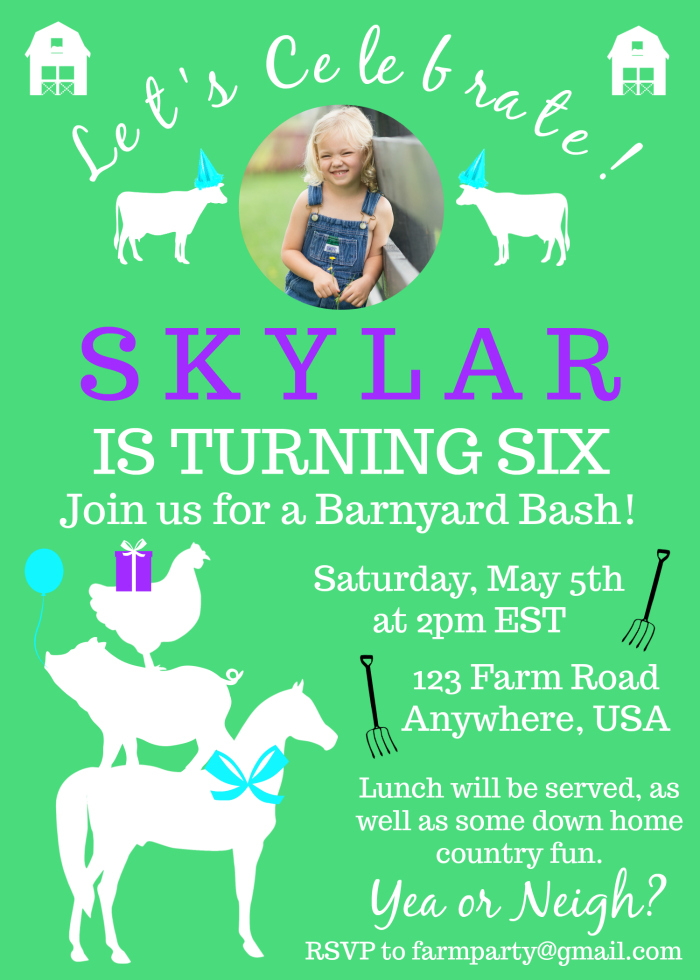
    Farm Birthday Invitations Tutorial - fully customizable - Rain on a Tin Roof

    Isn’t it adorable? Here’s how we did it…

    Farm Invitations Tutorial

    This post contains affiliate links for your shopping convenience. Click here to read my full disclosure policy.

    The video below will completely walk you through the steps of making your own birthday invitations using Picmonkey and even printing them out. Like I said, you will be able to completely customize this invitation to your own liking. You can change the fonts, colors, anything like that. In the video, I do show you exactly how I did mine, but you can change it up however you like.

    Before you start to create your own invitation, there are a couple of things you need:

    1. Farm Animal Images 

    To create farm animal birthday invitations, you have to have some cute farm animal graphics, of course! The one thing Picmonkey does not have are any farm animal images. They have just about every other kind of graphic you could need, but no farm animals. (Come on, Picmonkey – get on it!) So, you will need to have those on hand before you start. I purchased this pack of farm animal silhouettes from Creative Market to use. It was $5 for 42 farm related images and it was a steal. Not only did I use these for the invitations, but I also used them for decorations at the party as well.

    2. Photo of the Birthday Kid (Optional)

    I always like to put a photo of the Circus on her birthday invitations. I keep one every year and that way, you can always look back and see how much they changed from year to year. If you don’t want to include a photo on your invitation, then you can just replace the photo with another farm themed image or something else to your liking. I’ll show you how to crop the photo into a circle in the video.

    Ready to get started on your own farm party invitations? Watch the video below! I’m also including written directions as well below the video, but the video will give you the best visual. First, go to Picmonkey!

    [adthrive-in-post-video-player video-id=”isvGrWP0″ upload-date=”2018-05-22T13:12:10.000Z” name=”How to Make Farm Birthday Party Invitations using Picmonkey” description=”Make these farm birthday invitations for free using Picmonkey. You can make them completely customized to fit your birthday party’s details and even add a photo of the birthday kiddo! You can make your own invitations in under an hour with this tutorial – all you need to do is print them! “]

    Here’s what I did step-by-step. As you do this, be sure to leave plenty of blank space around the edges of your invitation. This will ensure that when you go to print the invitations that none of your text or images will get cut off.

    Barnyard Invitations: Step by Step

    Steps

    Step 1

    Create the circle image of the birthday guy or gal.

    Go to Picmonkey. Select Edit > Computer > Select the Photo of the birthday kid you want to use.

    Go to the square on the left that says Frames > Shape Cutouts > Circle.

    Size and move the circle until you have the photo cropped as you like it. Export the image and save it to your desktop.

    Step 2

    Go to the Picmonkey homepage. Select Design > Blank Canvas > Print Size, 5×7. Scroll toward the bottom and select the vertical blank one.

    Step 3

    Select Canvas Color on the left side. Choose the color you want your background to be. We used a green color, which was 4adc7c. You can simply type that into the letter box under Canvas Color if that’s the same one you wish to use.

    Step 4

    Click on the Butterfly icon on the left, which is the Overlays menu. Click Add Your Own. Find and choose the barn images or whatever other image you wish to use and put one in each of the upper corners of the invitation.

    Repeat this process and add in the animals on top of one another in the lower left hand corner as well.

    Use the Overlay box that pops up with each image to turn the images white or whatever other color you want to use.

    Step 5

    Click on the Tt on the left. Add in a text box using the font Black Jack. Type in “Let’s Celebrate!” Make it white or another color you want to use. Click on the Effects button on the text menu box that pops up and select curve. This will curve the text. Place this text box near the top of the invitation.

    Step 6

    Click on the Butterfly icon > Add Your Own. Select the photo you cropped into a circle. Size and place it just under “Let’s Celebrate!”

    Step 7

    Add in the rest of the text.

    Click on the Tt button again and add in the rest of the details for your party. Below is a detailed image noting each text font and colors.

    Sorry about the typos in the invitation near the bottom – you get the idea though! 

    Farm Invitations - Fonts and colors - Rain on a Tin Roof

    Step 8

    Add in the rest of your images.

    Go back to the Butterfly icon > Add Your Own. Add in the cows on either side of the photo. Add the pitchforks beside the date and address.

    Go to the Apple icon on the left. Select Celebrate. This is where you can add the balloon and party hats. To add the gift and bow, select Santaland from the Apple icon. You’ll find those under that theme. Below is another image with all the details on the images I used.

    Barnyard Invitations - graphics and overlays to use - Rain on a Tin Roof

    Step 9

    After you’ve got your invitations exactly how you like them, click Export along the top and save it to your computer. You can also click the Save icon along the top and that will save it to your Picmonkey hub, which will allow you to come back in and edit the invitation if needed. I generally like to do both of those options in case I do need to come back in and edit the invitation for some reason.

    Step 10

    Print your invitations!

    You can also print your invitations right from Picmonkey. Once you’ve exported and saved your party invitation to your desktop, go to the Picmonkey homepage. Scroll down to the bottom and click on Picmonkey Print under Apps + Tools.

    Select Flat Cards > Get Started > 5×7 > Single Sided > Whichever paper type you prefer > How Many Invitations You Need > Upload Your Invitation. Make sure everything looks good and that nothing is cut off on the edges, then finish your order!

    Farm Party Invitations - how to make your own - Rain on a Tin Roof

    Isn’t she a cutie? Of course, I’m partial though. 😉

    Have you ever created your own invitations for parties? Tell us about them in the comments!

    Looking for more ideas for your birthday celebrations? 

    Get more ideas for farm birthday parties here!

    How to Make a Party Banner with Picmonkey – yep, I use Picmonkey to make party banners too!

    Another Kind of DIY Party Invitation using PicMonkey – this one is a more basic invitation that could work for lots of different party themes.

    Want to know what else Picmonkey can do? Check out these 17+ Picmonkey Tutorials, Tips and Projects then.

    Want to refer back to this post later? Pin the image below!

    Farm Birthday Party Invitations Tutorial using Picmonkey - Rain on a Tin Roof

  • How to Make a Party Banner with PicMonkey

    How to Make a Party Banner with PicMonkey

    The Circus has turned five. 

    I’m not sure how we got here, or how we made it here all in one piece, but nevertheless, we did. #thankyajesus

    For her birthday party, she wanted a superhero theme – mostly Wonder Woman, but with a splash of Supergirl and Batgirl as well. #girlpower

    I was far too excited about this one. I love Wonder Woman. And really, all things girl power. 

    For the party, I made one of my super easy, super cheap party backdrops, then layered on a Wonder Woman / Superhero Style party banner I made using PicMonkey. 

    This tutorial will teach you how to make a party banner with PicMonkey. Customize the DIY party banner with your party theme - easy DIY Party Decor!

    The banner is really easy to make with PicMonkey. After you’ve created it, you just print it out, cut out the shapes, and string it together. 

    How to Make a Party Banner with PicMonkey

    Besides obviously needing a computer and the internet, you’ll also need a couple of other things after you print out the banner.

    Tools & Supplies

    Steps

    Step 1.

    Watch the video below to first make the banner using PicMonkey. Keep in mind you can customize the banner however you wish once you have the basic shape of the banner made – change up the colors, switch out the backgrounds, etc.

    Some of the fonts and features I used for the banner are part of PicMonkey’s Premium Features which aren’t available with the free version of PicMonkey. You can switch those out and use their free features or you can spring for the premium features, which are $3.99 – $7.99 per month. Personally, I couldn’t live without the premium features and the price is more than worth it to me. 
    [adthrive-in-post-video-player video-id=”MqDcJrnE” upload-date=”Tue Jun 06 2017 19:00:07 GMT+0000 (Coordinated Universal Time)” name=”How to Make a Custom Party Banner with PicMonkey” description=”Learn how to make a custom party banner using Picmonkey.”]

    Step 2. 

    Upload each of your banner files to a place where you can print them off. I used Staples for this and just uploaded all of my files into their copy and print services website, placed the order, then picked them up in-store. I printed mine out on a heavy 8.5 x 11 cardstock so that they would lay nice and flat against the backdrop. Also, be sure you print multiples of any letters you may need more than one of.

    Step 3.

    Once you get your banner sheets printed out, cut out around the shapes as I noted in the video. 

    Step 4. 

    To string the banner together, use the X-Acto knife and cut a small slit in each upper corner of each bunting. Weave your ribbon, string, or golden lasso 😉 through the buntings to connect them together. 

    This tutorial will teach you how to make a party banner with PicMonkey. Customize the DIY party banner with your party theme - easy DIY Party Decor!

    Hang the banner on the wall with thumbtacks or push pins. 

    This tutorial will teach you how to make a party banner with PicMonkey. Customize the DIY party banner with your party theme - easy DIY Party Decor!

    Our mini Wonder Woman thought the party decorations were pretty cool! 

    Do you have any favorite things to whip up with PicMonkey?

    You might also want to see…

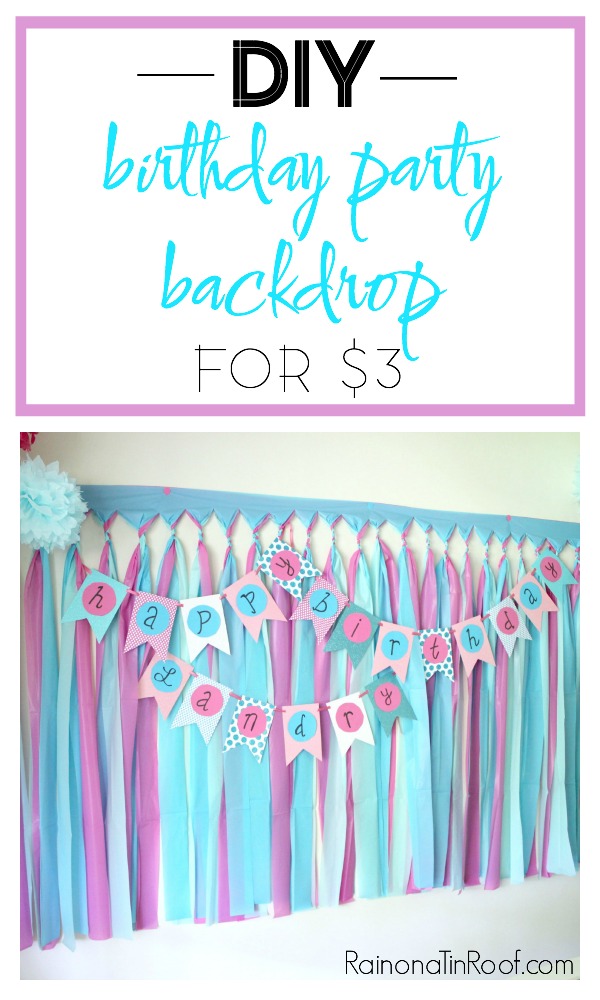
    How to make a DIY birthday party backdrop for $3.

    DIY Birthday Party Backdrop

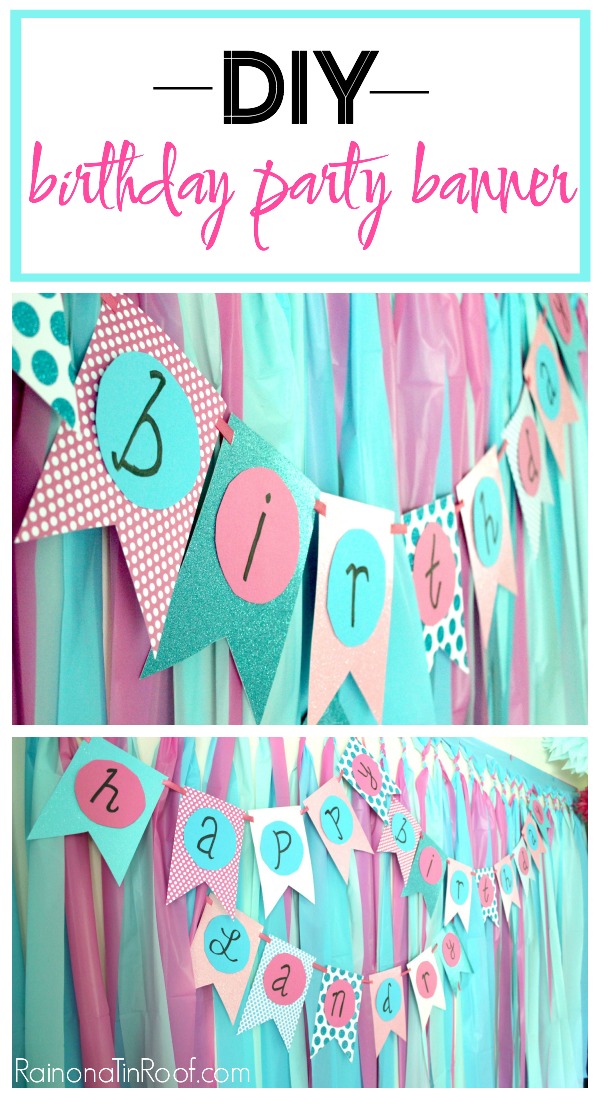
    Simple DIY Birthday Party Banner with Paper and Scissors

    DIY Birthday Banner with Paper, Scissors and a Marker

    17 PicMonkey Tutorials, Tips, and Projects

    PicMonkey Tutorials, Tips and Projects

    Pin This Post

    This tutorial will teach you how to make a party banner with PicMonkey. Customize the DIY party banner with your party theme - easy DIY Party Decor!

  • DIY Party Invitation using PicMonkey

    DIY Party Invitation using PicMonkey

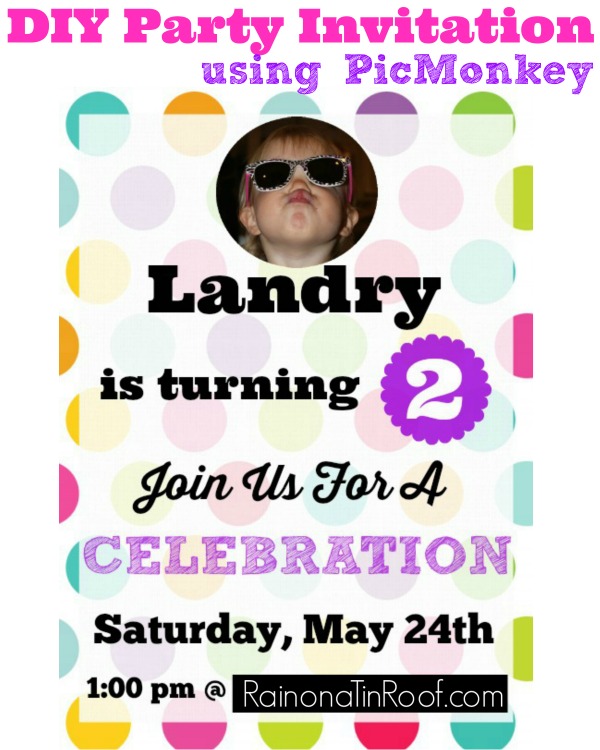
    Create your own customized party invitations for any event using this Picmonkey invitation tutorial! No more paying a boatload for custom party invites – now you can do it yourself on the cheap with Picmonkey invitations! 

    This post contains affiliate links. 

    Once more, its that time of the year.

    When Mama drinks a little more cheap beer than usual.

    When she may cry simply because the streamers aren’t twisting just right.

    When she is hovering on the edge of a nervous breakdown.

    That’s right, its birthday season around here.

    Why I put this much stress on myself for the kid’s party, I do not know. I mean, let’s be honest. The minute the kid dropped her first cuss word, that mother of the year award was out of my reach. As if a perfectly decorated birthday party would bring it back.

    One thing however, that is going right in the birthday planning are the party invitations I made using PicMonkey.

    Picmonkey Invitation Tutorial

    Bless you, PicMonkey.

    Bless you for helping me keep a little piece of what sanity I have left.

    Here’s how I made my Picmonkey invitations. You can customize them to your liking or party theme however you wish.

    DIY Picmonkey Invitations

    These were really easy to make. I think I had it all done in about an hour – more time to make those streamers just perfect.

    Steps

    Step 1

    If you don’t already have a Picmonkey account, you’ll need to sign up for one. You can get a free trial here or just go ahead and pay the $6 a month if you want – it’s completely worth it and honestly, it’s a steal for how much you save making stuff like this yourself.

    Step 2

    Select a background you want to use.

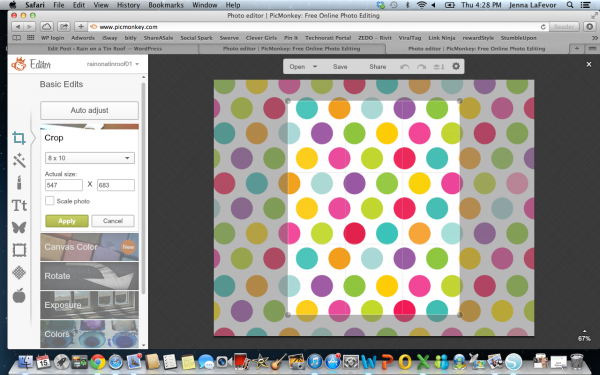
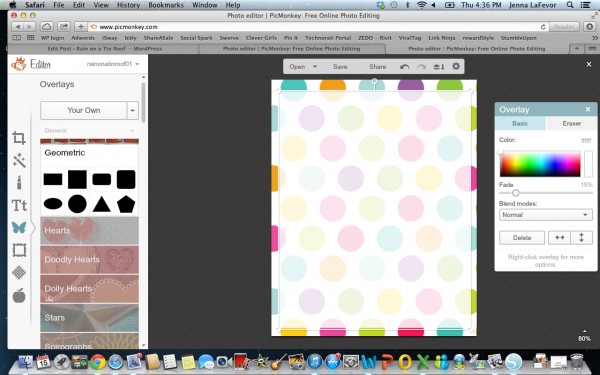
    I went with the different colored polka dots because the kid’s party is a Care Bear theme and ya know, there are lots of rainbows in Care-A-Lot and I didn’t want bears to be exploding from every surface. I just googled rainbow polka dots, or polka dots, or rainbow, until I found an image that I liked and was large enough to work for what I needed. And of course, that was free. When you have your image saved, open it up in PicMonkey, and crop it down to an 8×10 size or a rectangle size of your choice. I do 8×10 and then print in 5×7 sizes. Doing the larger size just gives a better resolution – or I think so anyway. Picmonkey InvitationsStep 3

    Put an overlay on top of the background. 

    Obviously, if you tried to put your text on top of all those different colors, it isn’t going to stand out very well. To help with this, put a white faded overlay on top of your background. Do this by selecting the butterfly icon, then the geometric tab, then the rectangle, size it as needed, change the color to white and fade it to 15%. Center it on the background.

    Picmonkey Invitation Tutorial

    Step 4

    Add your text and other images. 

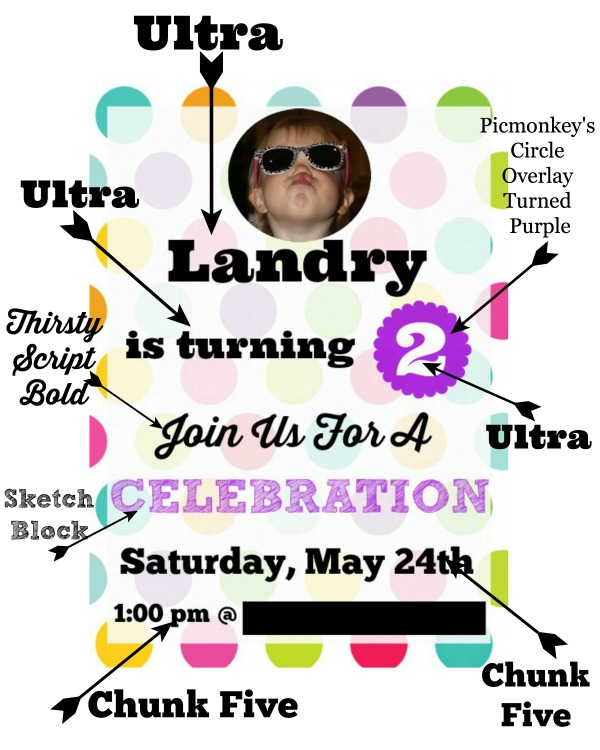
    To make this easier on you and me, I have this handy little graphic that tells you exactly what fonts and images I used.

    You can send me a cheap beer to thank me for it.

    Picmonkey Invitations

    Last year’s birthday party invitations had quite a few different fonts going on. This year, I stuck with just a few different ones because there was so much going on with the background.

    Step 5

    Save and Print.

    Once you’ve got the invitations to your liking, save them on your desktop. After that, go to Picmonkey Print and print out the invitations or you can also print them elsewhere if you wish. I typically print out our invitations in a 5″ x 7″ size.

    Have you ever made party invitations using PicMonkey or something else?

    You may also want to see…

    This tutorial will teach you how to make a party banner with PicMonkey. Customize the DIY party banner with your party theme - easy DIY Party Decor!

    How to Make a Superhero Party Banner with Picmonkey

    Top 10 Posts of 2013 from RainonaTinRoof.com

    DIY Party Backdrop for $5

    Pin This Post

    Custom Picmonkey Invitation Tutorial

    You know you don’t wanna miss any of this crazy.

    Stalk Me Here:

    Pinterest / Facebook / Twitter / Instagram

    SaveSaveSaveSave

  • 17+ PicMonkey Tutorials, Tips, and Projects

    17+ PicMonkey Tutorials, Tips, and Projects

    Picmonkey is an online resource for editing photos, creating collages and graphics, making your own watermark, invitations and much more! Not only will you learn Picmonkey photo editing with these Picmonkey tutorials, but you’ll also learn how to make so much more with it!

    This post contains affiliate links. 

    If you have been around here for long enough, you may have heard me chat about Picmonkey – the way I edit pictures online. But the question is, what all can it really do? The short answer: everything. The long answer: collages, recipe cards, labels, tags, and so much more….

    How to Use PicMonkey

    First things first, right? Head to PicMonkey. If you don’t already have an account, go ahead and create one. PicMonkey used to be free, but with upgrades you can buy. Now, it does cost $5.99 a month to use the service. In my opinion, it’s completely worth it. If you’re not sure though about going ahead and signing up for a paid account, I totally get it. You can do a free trial by clicking here.

    Now, onto actually using PicMonkey. Here are some basic PicMonkey tutorials.

    The Beginner’s Guide

    Picmonkey Tutorial for Beginners

    If you haven’t done much with PicMonkey before, then you should probably start with this beginner’s guide.

    PicMonkey Photo Editing Tutorials

    Editing Baby Pictures with PicMonkey

    Picmonkey Photo Editing - Babies

    This Picmonkey tutorial from We Lived Happily Ever After is a great guide for editing not only baby photos but other photos as well. Seriously, look at that photo! Gorgeous! This gal knows her PicMonkey!

    30 Second Edits on PicMonkey

    Editing Photos with PicMonkey

    Ummm, seriously, do you see the difference in those two photos? Yes, people. PicMonkey can do that with its photo edits. Creative Cain Cabin will show you how to make these 30 second edits. 

    Create Collages with PicMonkey

    How to Use PicMonkey

    Sweet C Designs has the deets on making collages with Picmonkey.

    PicMonkey Tutorials for Making Your Own Cards, Invitations, Party Decor and More

    Birthday Party Invitation using PicMonkey

    Picmonkey Tutorial for Party Invitations

    For the kid’s second birthday, I made this fun party invitation on PicMonkey.

    Farm Party Invitation Using PicMonkey

    Picmonkey tutorial for birthday invitations

    We had a farm themed party for another one of the Circus’ birthdays and I made this farm themed birthday invitation for it.

    Superhero Party Banner using PicMonkey

    Picmonkey tutorial for party decor

    When the Circus had a superhero party, I made this customizable superhero banner for the party.

    Chalkboard Birthday Party Invitation 

    Picmonkey tutorials for making party invitations

    Last year, for the kid’s blue and pink 1st birthday party, I created her invitations in Picmonkey.

    Christmas Cards using PicMonkey

    Picmonkey tutorial for Christmas cards

    Christmas cards can be so expensive. Why not use Picmonkey to make your own and save a lot of dough?

    PicMonkey Tutorials for Creating Your Own Art, Graphics, and More

    Make your Own Wall Art

    How to Use PicMonkey to Make Your own Art

    When I was working on my master bedroom makeover last year, I needed new wall art, but didn’t want to spend a lot of money. I ended up making my own DIY Wall Art.

    Create Labels with PicMonkey

    How to use picmonkey to make labels

    Blissful Roots will show you how to make your own labels in Picmonkey.

    Make Recipe Cards

    Picmonkey tutorial for a recipe card

    Anyone else have a hot mess of a recipe box? Please don’t say its just me! Find out how to make a recipe card here and tame that hot mess!

    Make Printable Holiday and Gift Labels

    How to use picmonkey to make gift labels

    Don’t buy labels or gift tags again! Make your own with this tutorial from The Importance of Being Reese.

    Create Chalkboard Art and Printables

    How to use picmonkey to make chalkboard art

    Here’s another great tutorial for creating chalkboard art from House of Hawthornes.

    Picmonkey Tutorials for Bloggers

    Making Photos Pin-Worthy

    How to use Picmonkey for Bloggers

    Making your photos pin-worthy is super important for bloggers. These are my tips I use when editing photos with PicMonkey.

    Favorite Things Graphics

    Picmonkey Tutorial for creating graphics

    Honey We’re Home has a great tutorial for creating favorite things graphics.

    How to Make Watermarks with PicMonkey

    Picmonkey tutorial for creating watermarks

    I love this tutorial on creating a custom and transparent watermark.

    Are you ready to dive in and learn how to use Picmonkey so that you can follow some of these PicMonkey tutorials?

    pin-this-post

    Picmonkey Tutorials for Editing Photos, Invitations, Art and More

    You know you don’t wanna miss any of this crazy.

    Stalk Me Here:

    Pinterest / Facebook / Twitter / Instagram


    SaveSave

  • How to Make Your Photos PinWorthy with PicMonkey

    How to Make Your Photos PinWorthy with PicMonkey

    When I wrote the post on How to Grow Your Blog with Pinterest, I touched on making your photos pin-worthy. You should have at least one photo in your post that is made specifically for Pinterest.

    Create images that people will want to pin over and over again. How to make your photos Pin-Worthy

    This post contains affiliate links for your shopping convenience. Click here to read my full disclosure policy.

    As you guys already know, Pinterest is huge. Huge. Huge. Pinterest is all about photos (we knew that, Jenna!), and as bloggers, our photos can make or break us!

    As bloggers, we want our photos to be pinned and re-pinned over and over again! So, how do we get readers to pin our photos? We must make them pin-worthy!

    Let me give you an example of a non-pin-worthy photo:

    How to Make Your Photos Pinworthy with Picmonkey

    And a pin-worthy photo:

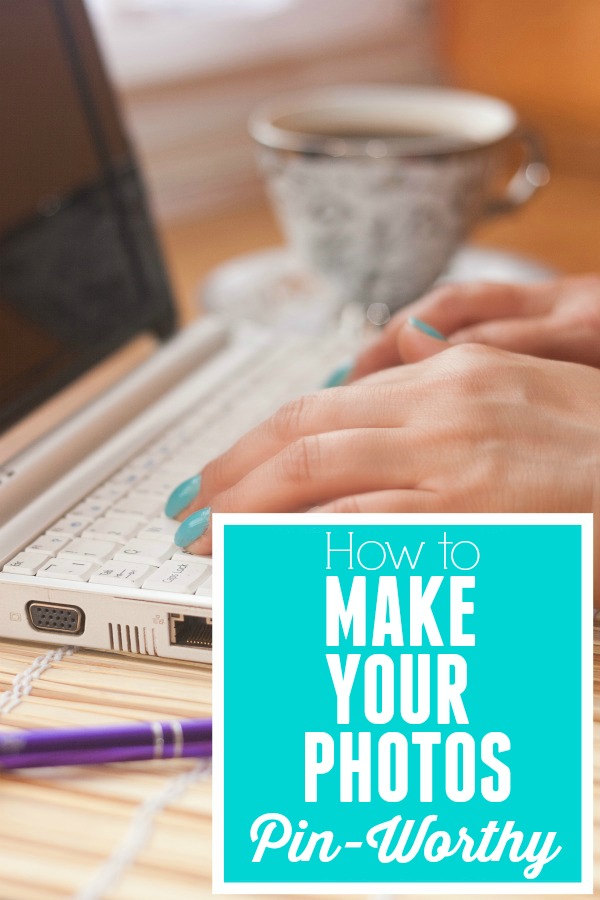
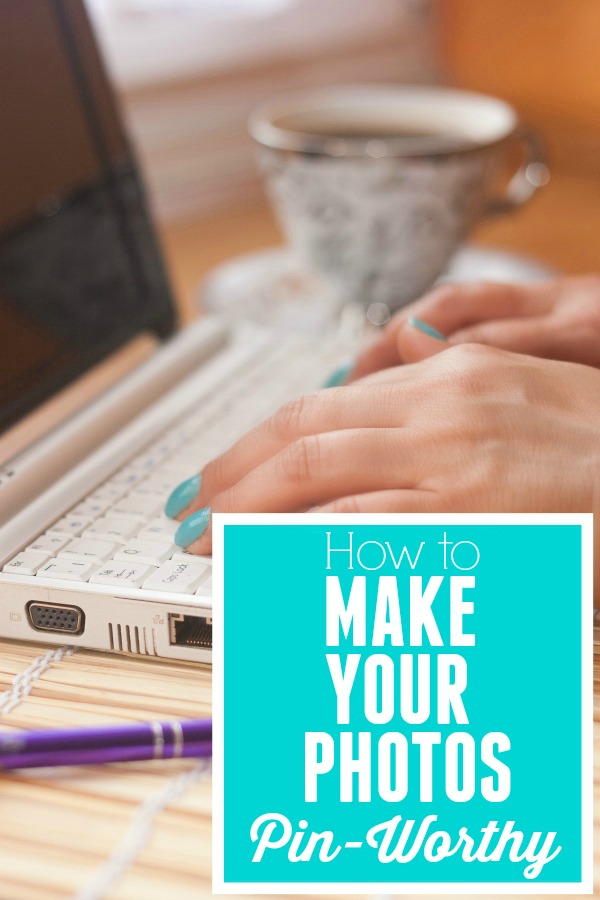
    Pin-Worthy Photo

    See the difference? The pin-worthy photo is bright, clear, and sharp. I added an overlay with the project name over it so that people would know what that pin would lead them to and I also added a watermark with my blog url in the bottom corner. This image is also vertical – vertical photos do better on Pinterest, rather than horizontal ones.

    Having great photos will not only help grow your blog through Pinterest, but it will keep readers interested in your post, and other posts on your blog.

    Here are the steps I take when getting my photos ready for a blog post, and eventually to go on Pinterest. I use PicMonkey features to do all the edits.

    How to Make your Photos PinWorthy

    Step One:

    Open up your photo in Picmonkey. Under Basic Edits, go to Exposure and adjust the levels as needed. Just play with the levels of each item until your photo looks good. Each photo is different, so there is no exact recipe for this. I usually increase the brightness a bit (especially if the photo is dark to begin with), I will increase the highlights a tad, and the contrast a bit as well. Sometimes, I increase the shadows, but not a whole lot. It tends to make the photo too dark.

    Step Two:

    Under Basic Edits, go to Colors. Adjust the saturation and temperature as needed. Typically, if you started out with pretty good color, you may not need to adjust these levels at all.

    Step Three:

    This is when I add my overlays. First, I add the label overlay that usually states the post / project title. Go to the overlays button, the 5th button down on the left. Picmonkey has lots of different labels you can use for this. I typically use one of the banners under Scrapbooky or something under Geometric. If there is some empty space on the photo to start with, I skip the overlay and write the text directly on the photo. Select which one and click on it. Position it where you want it on the photo. Use the bubbles on the corners to size it. You can use the overlay box that pops up beside it to change the color.

    Step Four:

    Now, you need to add text to your overlay. Go to the text button on the left side, the fourth button down. Click add text. Type your text in the box. Change the color and size with the text box that pops up. Change your font with the menu on the left. When you have your text like you want, drag the text box on top of the overlay.

    Step Five:

    At this point, you can create another overlay with text that says your blog’s name using the same steps you did above.

    Step Six:

    Save your photo.

    That’s it! Not too hard, especially once you get the hang of PicMonkey!

    Do you have any tips for making your photos pin-worthy?

    READ MORE OF THE GROW YOUR BLOG SERIES: 

    My Blogging Story

    7 Things Your Blog Needs to Keep Readers Coming Back

    How to Grow Your Blog with Pinterest

    You know you don’t wanna miss any of this crazy.

    Sign up to get my posts delivered to your inbox here.

    Stalk Me Here:

     Pinterest / Facebook / Twitter / Instagram

    Create images that people will want to pin over and over again. How to make your photos Pin-Worthy

  • How to Create an Invitation in PicMonkey

    How to Create an Invitation in PicMonkey

    Learn how to make your own party invitations with this PicMonkey invitation tutorial! You can customize it with any colors or fonts of your choice.

    This post contains affiliate links for your shopping convenience. Click here to read my full disclosure policy.

    With the kid’s 1st birthday quickly approaching, I realized I had better get some invitations made for her birthday party.

    As many of you already know, I am a big PicMonkey fan. I love all the cool things it lets you do with photos. And for just $6 a month, it is well worth the money since you can save boatloads on creating your own invitations, holiday cards and more and not pay retail for them! If you don’t have a Picmonkey subscription yet, you can get a free trial by clicking here.

    I have used PicMonkey for my master bedroom wall art, my blog design, and to make my pictures “pin-worthy,” among other things. So, with the help of Picmonkey, I whipped up some pretty stellar invitations for the kiddo’s birthday.

    Picmonkey Invitation Tutorial

    How to Create an Invitation with Picmonkey

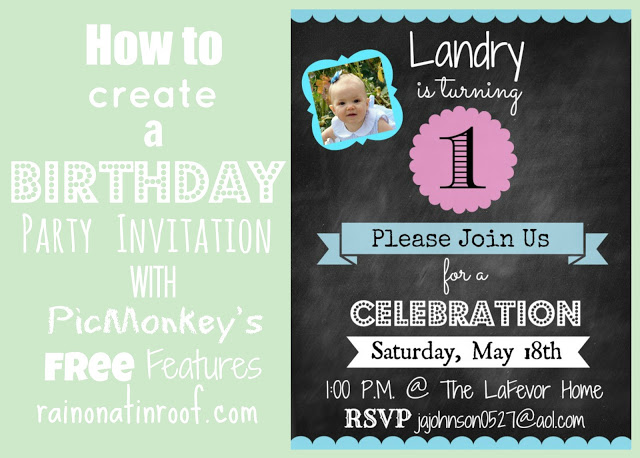
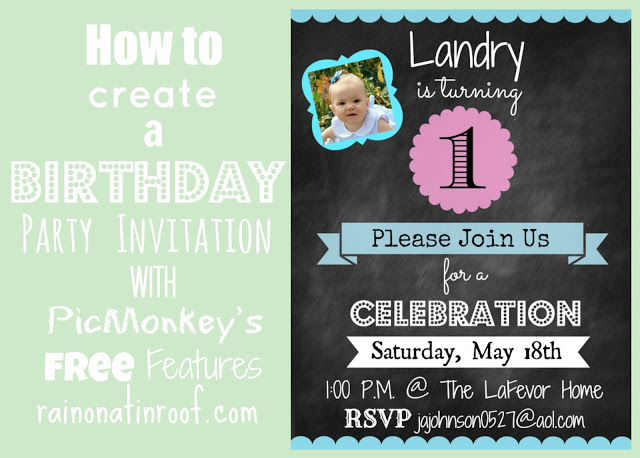
    Isn’t it adorable? The birthday party theme” is pink and blue, thus why those pops of color in the invitation.
    This invitation was pretty simple to make. Here’s how I created this Picmonkey invitation:
    Step 1
    The first thing you want to do is upload an image for your background. I used a chalkboard background I found for free here.
    Step 2
    Next, add any other overlays you want to use. I added the blue borders I found here. The banners and labels were all found on PicMonkey. I put where you can find them in the image below.
    DIY Picmonkey Invitation
    Step 3
    Now, its time to add your text. All you do is add the text box and place it where you want it on the image. I put what fonts I used in the image below.
    DIY Party Invitation with Picmonkey
    Step 4
    Once you have your Picmonkey invitation how you want it, save it. At this point, you can opt to print it off locally or you can go to Picmonkey Print and print from there – one stop shop.

    What kind of Picmonkey invitations will you whip up?

    Want to see other party invitations I’ve made with Picmonkey…

    Colorful Polka Dots Invitation – a basic party invitation that’s great for any party!

    Farm Birthday Party Invitation – perfect for your next hoedown!

    Need more party ideas? Here you go:

    How to Make a Superhero Party Banner with Picmonkey – easy and you can switch it up to match your party’s decor!

    DIY $5 Party Backdrop – so stinkin’ easy, cheap and an awesome party decoration!


  • Tutorial: Frugal DIY Wall Art

    Tutorial: Frugal DIY Wall Art

    After posting my DIY wall art for my master bedroom makeover, there were a few people who asked for a tutorial of how to make them. So here ya go, y’all.

    DIY Wall Art with Picmonkey Tutorial

    This post contains affiliate links for your shopping convenience. Click here to read my full disclosure policy.

    I did this all in Picmonkey.

    Supplies: 
    –Graphics / Images in .png format (.png gives the images a transparent background)
    –Backgrounds of your choice

    I bought images on Etsy from GraphicDreamz and from Graphique. When you order, just specify in the message that you would like the .png file.

    I bought backgrounds from Maishop Digital Art and Gidget Designs, both on Etsy.
    Okay, now down to business.
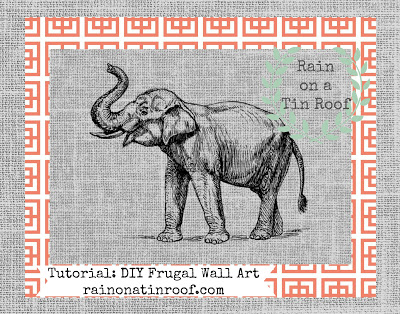
    What I did first, was size my backgrounds. I wanted all of these to be 11×14 prints (including backgrounds) in the end. I wanted to use two backgrounds, the coral and the linen to make the prints pop. See how the image below is on a linen background, the linen is on the coral pattern, and the coral is on the same linen background again.
    Tutorial for DIY wall art using Picmonkey.
    I also noted above what size crops to use for each background. The linen background that the elephant is on is 5×7, the coral is 8×10, and the back linen is 11×14. Just because I made these an 11×14 doesn’t mean I have to print them out that size. I just wanted standard dimensions to work with.
    To size your backgrounds:
    1. Go to Picmonkey.
    2. Select edit a photo near the top.
    3. Select whatever background you are using. I’m going to use my linen background first.
    4. Once the background appears, select the 1st button on the left under editor, which is the basic edits button.
    5. Select crop.
    6. In the drop down menu that says “no fixed proportions”, select the size you want to use. I’m doing my first linen background first, so I am selecting 5×7.
    Use Picmonkey to make cheap wall art.
    7. Look at the crop screen to the right on your background. If what is in the crop regions works for you, hit apply. If the crop regions do not include part of the pattern you want, then move around the box, but don’t make the box bigger or smaller.
    8. Save the background. Do not save it as the original file. I saved mine as “5×7 linen background”.
    9. If you are using multiple backgrounds, as I did, you will need to repeat these steps for each background, cropping them to your desired size. Example: I cropped the coral one to an 8×10 and the back linen one to an 11×14 and saved them accordingly.
    Now, you are going to add your image to your background. I put my image on my 5×7 linen background.
    To put your image on your background:
    1. Go to Picmonkey.
    2. Select edit a photo near the top.
    3. Select the background you want your image to go on, NOT the image. I selected my 5×7 linen background. ****At this point: if you are using a horizontal image and your background is vertical, you will need to rotate your background under the basic edits button and rotate. I did this with mine.***
    4. Click on the overlay button on the left (the fifth button down).
    5. Select Your Own at the top.
    6. Find the image on your computer you are wanting to use, highlight it, and click open. I’m using my elephant. Your screen should look something like this, once you choose your image.
    DIY Wall Art with Picmonkey
    7. Use the circles on the corners of the image to make it bigger and then position it in the center of the background.
    8. When you are satisfied, save the entire image. I saved mine as “elephant on linen.”
    At this point, if you are just doing one background, you’re done! However, if you are doing multiple backgrounds, continue on!
    To add a second background:
    1. Go to Picmonkey.
    2. Select edit a photo near the top.
    3. Select the background you want to put under the image you just made. (This should be one of the backgrounds you have already sized. Mine is the 8×10 coral background.) Rotate if needed.
    4. Click on the overlay button on the left (the fifth button down).
    5. Select Your Own at the top.
    6. Find the first background with your image on your computer that you just did (mine is the elephant on the linen background), highlight it, and click open.Your screen should look something like this, once you choose your image.
    DIY Wall Art with Picmonkey Tutorial
    7. Just like you did with your last one, size the image to where it is center on the new background.
    8. Save it when you are satisfied. I saved mine as “elephant both backs.”
    If you want to add a third background:
    1. Go to Picmonkey.
    2. Select edit a photo near the top.
    3. Select the background you want to put under (in the very back) the image you just made. (This should be one of the backgrounds you have already sized. Mine is the 11×14 linen background.) Rotate if needed.
    4. Click on the overlay button on the left (the fifth button down).
    5. Select Your Own at the top.
    6. Find the last background you just made that has your image and two backgrounds (mine is the “elephant both backs” file. highlight it, and click open. Your screen should look something like this, once you choose your image.
    Make your own wall art with Picmonkey.
    7. Just like you did with your last one, size the image to where it is center on the new background.
    8. Save it. So I would know this was the final one, I saved it as “elephant final”.
    And now you are done. It seems like it takes a long time, but it really doesn’t. You only size your backgrounds once and when you get the hang of it, you’ve done an entire print in no time. I think it took me about 30 – 45 minutes to make 10 complete prints.
    And this was the longest blog post. Ever. Good Grief.
    Now, some of you that are familiar with PicMonkey are thinking “Why in the world didn’t she just do an overlay on top of an overlay on top of an overlay???!!” “Is she crazy?”
    Duh. We all already knew that. I tried the overlay on top of an overlay, yada-yada-yada method. But it just would not work for me. It wouldn’t let me re-size the backgrounds and image like I wanted it. Maybe some of you can get it to work for you.
    Now, go buy cute graphics and backgrounds (I think I paid around $15 for backgrounds and 9 or 10 images) from Etsy and make your own wall art.
    I have to go get a beer. Because this was the longest blog post ever. I know I already said that, I just wanted to re-inforce it. Love y’all!

    You know you don’t wanna miss any of this crazy.

    Sign up to get my posts delivered to your inbox here. 

    Stalk Me Here:

    Pinterest / Facebook / Twitter /  Instagram

  • Song Lyrics as Wall Art

    Song Lyrics as Wall Art

    I love music. In fact, I don’t just love music, I live music. If you have ever read my About Me page, you know that my musical tastes are incredibly varied. I’m talking Patsy Cline one minute and KISS the next. Yep, I’m that girl. I even made my daughter a playlist before she was born to make sure she was raised up on the classics. The child has yet to listen to an actual lullaby or kids song. We have dance parties to Jason Aldean, Scissor Sisters, and Poison among others. The wheels on the bus what? Not here. So, obviously, music is very important to me.

    When I chose the graphics to use for my DIY bedroom wall art, for the most part, I chose images that were special or had a connection to my husband and I in some way. Besides those prints, I wanted to put something else that had a significant meaning up. What better than song lyrics? So, I took lyrics from our favorite song and put together a print on Picmonkey to use song lyrics as wall art.

    This post contains affiliate links for your shopping convenience. Click here to read my full disclosure policy.

    Song Lyrics as Wall Art
    Yes, people, our favorite song is “Your Love” by The Outfield. I’m not older than Grunt Labor, and we don’t know a Josie, but on our second date this song came on, I turned it up, he looked at me and asked, “Do you like this song?” I responded with, “Its my favorite.” He smiled devilishly and drove on. Music has the amazing power to take you back to a place in time and this one takes me back to that exact moment.
    Enough mushiness.
    To make this in Picmonkey, all I did was upload a linen background that I used from the master bedroom wall art, then I wrote in the first few lines of the song, using different fonts for each line. I added the wreath type image (I’m not quite sure what that’s called) as an overlay. It was a graphic I already had, and then just added text in the middle of it to put our initial. The banner on the bottom right was an overlay available through Picmonkey.
    Now, I just need a frame for this along with the other new wall art.
    Frugal frame ideas, anyone?

    Looking for more easy wall decor? Check these out:

    How to Make a Silhouette the Easy Way – seriously, super EASY!

    Sassy Fabric Covered Message Board – super fun bulletin board!

    Monogram Photo Art – monogram art using family photos!

    Vintage Nursery Rhyme Art – don’t toss those old nursery rhyme books!

    DIY Wall Art with Picmonkey – when you can’t find the art you want, you make your own!

    You know you don’t wanna miss any of this crazy.

    Sign up to get my posts delivered to your inbox here. 

    Stalk Me Here:

    Pinterest / Facebook / Twitter / Instagram