• Skip to primary navigation
  • Skip to main content
  • Skip to primary sidebar
  • About Me
    • New? Start Here!
  • Projects
    • DIY & Crafts
    • Decorating Ideas
    • Furniture Makeovers
    • Power Tools 101
    • Seasonal Decorating
    • Outdoor Projects
    • Parties – Ideas & Decor
    • Cleaning and Organization Tips and Ideas
  • Free Printables
  • Travel
  • Gift Ideas

Rain on a Tin Roof

DIY and Home Decor Blog. Fly Your Freak Flag.

You are here: Home >> Parties >> How to Create an Invitation in PicMonkey

April 19, 2013 By Jenna 18 Comments

How to Create an Invitation in PicMonkey

4 shares
  • Share
  • Tweet

Learn how to make your own party invitations with this PicMonkey invitation tutorial! You can customize it with any colors or fonts of your choice.

This post contains affiliate links for your shopping convenience. Click here to read my full disclosure policy.

With the kid’s 1st birthday quickly approaching, I realized I had better get some invitations made for her birthday party.

As many of you already know, I am a big PicMonkey fan. I love all the cool things it lets you do with photos. And for just $6 a month, it is well worth the money since you can save boatloads on creating your own invitations, holiday cards and more and not pay retail for them! If you don’t have a Picmonkey subscription yet, you can get a free trial by clicking here.

I have used PicMonkey for my master bedroom wall art, my blog design, and to make my pictures “pin-worthy,” among other things. So, with the help of Picmonkey, I whipped up some pretty stellar invitations for the kiddo’s birthday.

Picmonkey Invitation Tutorial

How to Create an Invitation with Picmonkey

Isn’t it adorable? The birthday party theme” is pink and blue, thus why those pops of color in the invitation.
This invitation was pretty simple to make. Here’s how I created this Picmonkey invitation:
Step 1
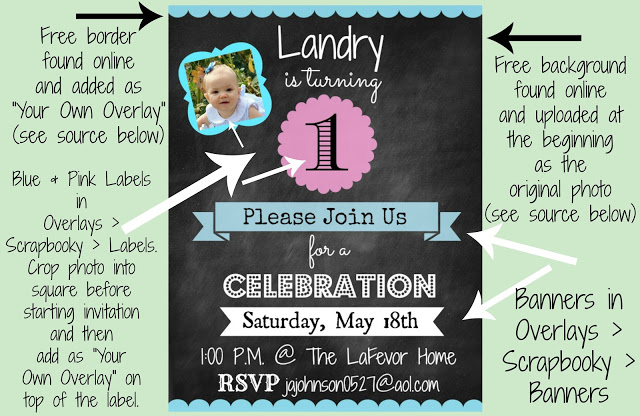
The first thing you want to do is upload an image for your background. I used a chalkboard background I found for free here.
Step 2
Next, add any other overlays you want to use. I added the blue borders I found here. The banners and labels were all found on PicMonkey. I put where you can find them in the image below.
DIY Picmonkey Invitation
Step 3
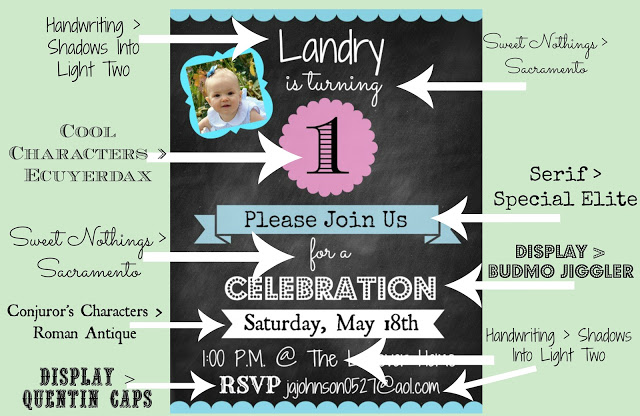
Now, its time to add your text. All you do is add the text box and place it where you want it on the image. I put what fonts I used in the image below.
DIY Party Invitation with Picmonkey
Step 4
Once you have your Picmonkey invitation how you want it, save it. At this point, you can opt to print it off locally or you can go to Picmonkey Print and print from there – one stop shop.

What kind of Picmonkey invitations will you whip up?

Want to see other party invitations I’ve made with Picmonkey…

Colorful Polka Dots Invitation – a basic party invitation that’s great for any party!

Farm Birthday Party Invitation – perfect for your next hoedown!

Need more party ideas? Here you go:

How to Make a Superhero Party Banner with Picmonkey – easy and you can switch it up to match your party’s decor!

DIY $5 Party Backdrop – so stinkin’ easy, cheap and an awesome party decoration!


4 shares
  • Share
  • Tweet

Filed Under: Parties Tagged With: birthday, invitation, kids, party, PicMonkey

Reader Interactions

Comments

  1. Sarah {Limited Space Organizing} says

    April 19, 2013 at 8:03 am

    I LOVE THIS POST!!! I’m a fellow lover of picmonkey and this is amazing!! Thank you for showing what each thing is and where to find it. GREATTTTTTT post!!!!

    -Sarah

    Reply
  2. Meredith says

    April 19, 2013 at 11:55 am

    Genius! I love picmonkey too, and this idea will come in handy.

    Reply
  3. Shannon Hawk says

    April 19, 2013 at 1:28 pm

    This is really cute! I love PicMonkey, there is sooo much you can do with it!

    Reply
  4. cooking with curls says

    April 20, 2013 at 12:52 pm

    Cool tutorial, thanks for sharing:)

    Reply
  5. Madalyn McArthur says

    April 20, 2013 at 4:54 pm

    I love it, thanks for sharing!

    Reply
  6. Jamie Alanna says

    April 20, 2013 at 10:22 pm

    Wow! What a great job! Love this invite. Gotta do this next birthday 😉 BTW, your little girl is adorable!!
    Jamie

    Reply
  7. Sarah Wells says

    April 24, 2013 at 10:11 am

    So cute, thanks for sharing! I LOVE using PicMonkey, but hadn’t thought of making invitations.

    Reply
  8. Whitney says

    April 24, 2013 at 12:34 pm

    thank you thank you for this!! so helpful!!

    Reply
  9. mail4rosey says

    April 25, 2013 at 4:10 pm

    This is a great post. So many people seem to really be loving Picmonkey right now. I’m visiting today from the Talking about Thursday hop. 🙂

    Reply
  10. erinz says

    May 22, 2013 at 9:12 am

    Thank you so much! I followed your instructions (down to using the exact same fonts) & my invitation looks so cute!!!

    Reply
    • Jenna LaFevor says

      May 23, 2013 at 9:55 am

      Yay!! That is great! I am so happy I could help you!

      Reply
  11. Emily @ Two Purple Couches says

    August 30, 2013 at 12:10 pm

    Thank you for posting this How To! I’ve been wondering how others create such awesome graphics in PicMonkey. Yay! Now I know how 🙂 Oh, and I use the free version for all of my photo edits, too. I don’t want to pay if I don’t have to! And so far, I don’t have to!

    Reply
    • Jenna @ Rain on a Tin Roof says

      September 3, 2013 at 2:59 pm

      You are so welcome! PicMonkey is amaze balls!

      Reply
  12. Amanda says

    October 13, 2013 at 8:25 pm

    Thank you so so much for this how to… my daughter’s birthday invitations look absolutely perfect and didn’t cost a cent, now conjuring up ideas for what else I can make with it!

    Reply
    • Jenna @ Rain on a Tin Roof says

      October 15, 2013 at 3:41 pm

      That is awesome, Amanda! I am SO glad it was so helpful for you! I just love PicMonkey! Have fun at the party!

      Reply
  13. Kelly says

    October 30, 2013 at 6:34 am

    This is great! I just have to figure out how to do overlays now!

    Reply
    • Jenna @ Rain on a Tin Roof says

      November 5, 2013 at 8:50 pm

      Kelly, its easy to do overlays! Once you get in there and start playing with PicMonkey, it will come easily!

      Reply

Trackbacks

  1. Just a Girl and Her Blog's Guide to Useful Graphic Design Programs - Just a Girl and Her Blog says:
    March 24, 2014 at 5:01 am

    […] friend Jenna at Rain on a Tin Roof teaches you how to make an invitation in PicMonkey and how to use it to make your photos […]

    Reply

Leave a Reply Cancel reply

Your email address will not be published. Required fields are marked *

Primary Sidebar

Privacy Policy

We are a participant in the Amazon Services LLC Associates Program, an affiliate advertising program designed to provide a means for us to earn fees by linking to Amazon.com and affiliated sites.

Please use all appropriate and proper safety precautions when using tools and attempting projects. All projects and tool usage are attempted at the reader’s own risk.

Copyright © 2026 · Brunch Pro Theme On Genesis Framework · Design by Stephanie Jones

4 shares