When I wrote the post on How to Grow Your Blog with Pinterest, I touched on making your photos pin-worthy. You should have at least one photo in your post that is made specifically for Pinterest.
This post contains affiliate links for your shopping convenience. Click here to read my full disclosure policy.
As you guys already know, Pinterest is huge. Huge. Huge. Pinterest is all about photos (we knew that, Jenna!), and as bloggers, our photos can make or break us!
As bloggers, we want our photos to be pinned and re-pinned over and over again! So, how do we get readers to pin our photos? We must make them pin-worthy!
Let me give you an example of a non-pin-worthy photo:
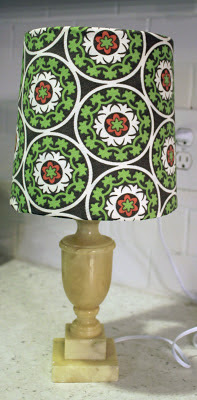
And a pin-worthy photo:

See the difference? The pin-worthy photo is bright, clear, and sharp. I added an overlay with the project name over it so that people would know what that pin would lead them to and I also added a watermark with my blog url in the bottom corner. This image is also vertical – vertical photos do better on Pinterest, rather than horizontal ones.
Having great photos will not only help grow your blog through Pinterest, but it will keep readers interested in your post, and other posts on your blog.
Here are the steps I take when getting my photos ready for a blog post, and eventually to go on Pinterest. I use PicMonkey features to do all the edits.
How to Make your Photos PinWorthy
Step One:
Open up your photo in Picmonkey. Under Basic Edits, go to Exposure and adjust the levels as needed. Just play with the levels of each item until your photo looks good. Each photo is different, so there is no exact recipe for this. I usually increase the brightness a bit (especially if the photo is dark to begin with), I will increase the highlights a tad, and the contrast a bit as well. Sometimes, I increase the shadows, but not a whole lot. It tends to make the photo too dark.
Step Two:
Under Basic Edits, go to Colors. Adjust the saturation and temperature as needed. Typically, if you started out with pretty good color, you may not need to adjust these levels at all.
Step Three:
This is when I add my overlays. First, I add the label overlay that usually states the post / project title. Go to the overlays button, the 5th button down on the left. Picmonkey has lots of different labels you can use for this. I typically use one of the banners under Scrapbooky or something under Geometric. If there is some empty space on the photo to start with, I skip the overlay and write the text directly on the photo. Select which one and click on it. Position it where you want it on the photo. Use the bubbles on the corners to size it. You can use the overlay box that pops up beside it to change the color.
Step Four:
Now, you need to add text to your overlay. Go to the text button on the left side, the fourth button down. Click add text. Type your text in the box. Change the color and size with the text box that pops up. Change your font with the menu on the left. When you have your text like you want, drag the text box on top of the overlay.
Step Five:
At this point, you can create another overlay with text that says your blog’s name using the same steps you did above.
Step Six:
Save your photo.
That’s it! Not too hard, especially once you get the hang of PicMonkey!
Do you have any tips for making your photos pin-worthy?
READ MORE OF THE GROW YOUR BLOG SERIES:
7 Things Your Blog Needs to Keep Readers Coming Back
How to Grow Your Blog with Pinterest
You know you don’t wanna miss any of this crazy.
Sign up to get my posts delivered to your inbox here.
Stalk Me Here:
Pinterest / Facebook / Twitter / Instagram

Leave a Reply