Every year, I make a customized birthday party invitation for the Circus’ party. This year, it’s a farm themed birthday, so I made farm birthday invitations. It’s actually pretty easy to make your own invitations and on top of that, it’s much more affordable than buying customized ones via other sources. Use this guide to make your own farm invitations or as a guide to whip up your own different themed party invitations.
Another birthday in the books for the Circus! I can’t believe it, but she is already six!
This year, she wanted a farm themed birthday party. As I always do, I made the invitations for her birthday myself using Picmonkey. It took me about an hour or a little less to put this one together and order the actual printed invitations. The best thing about making your own invitations though is that they can be 100% customized to fit the party and the birthday kiddo. Bonus – it’s much more affordable to make and print out your own invitations instead of going with another design and print service somewhere else online.
Here’s the farm birthday party invitations we ended up with this year for the Circus’s celebration…
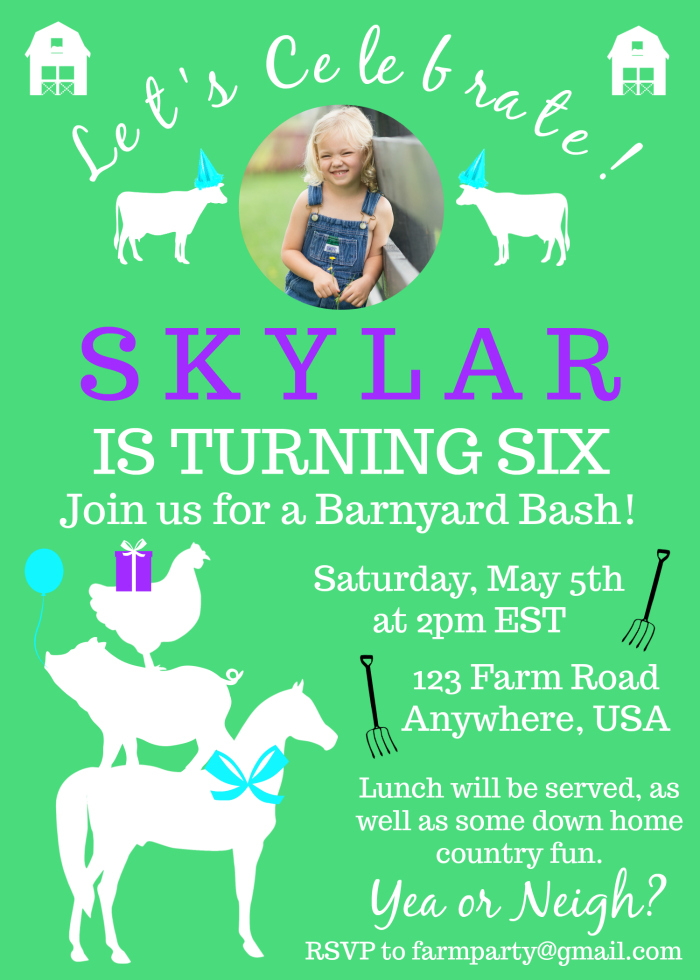
Isn’t it adorable? Here’s how we did it…
Farm Invitations Tutorial
This post contains affiliate links for your shopping convenience. Click here to read my full disclosure policy.
The video below will completely walk you through the steps of making your own birthday invitations using Picmonkey and even printing them out. Like I said, you will be able to completely customize this invitation to your own liking. You can change the fonts, colors, anything like that. In the video, I do show you exactly how I did mine, but you can change it up however you like.
Before you start to create your own invitation, there are a couple of things you need:
1. Farm Animal Images
To create farm animal birthday invitations, you have to have some cute farm animal graphics, of course! The one thing Picmonkey does not have are any farm animal images. They have just about every other kind of graphic you could need, but no farm animals. (Come on, Picmonkey – get on it!) So, you will need to have those on hand before you start. I purchased this pack of farm animal silhouettes from Creative Market to use. It was $5 for 42 farm related images and it was a steal. Not only did I use these for the invitations, but I also used them for decorations at the party as well.
2. Photo of the Birthday Kid (Optional)
I always like to put a photo of the Circus on her birthday invitations. I keep one every year and that way, you can always look back and see how much they changed from year to year. If you don’t want to include a photo on your invitation, then you can just replace the photo with another farm themed image or something else to your liking. I’ll show you how to crop the photo into a circle in the video.
Ready to get started on your own farm party invitations? Watch the video below! I’m also including written directions as well below the video, but the video will give you the best visual. First, go to Picmonkey!
[adthrive-in-post-video-player video-id=”isvGrWP0″ upload-date=”2018-05-22T13:12:10.000Z” name=”How to Make Farm Birthday Party Invitations using Picmonkey” description=”Make these farm birthday invitations for free using Picmonkey. You can make them completely customized to fit your birthday party’s details and even add a photo of the birthday kiddo! You can make your own invitations in under an hour with this tutorial – all you need to do is print them! “]
Here’s what I did step-by-step. As you do this, be sure to leave plenty of blank space around the edges of your invitation. This will ensure that when you go to print the invitations that none of your text or images will get cut off.
Barnyard Invitations: Step by Step
Steps
Step 1
Create the circle image of the birthday guy or gal.
Go to Picmonkey. Select Edit > Computer > Select the Photo of the birthday kid you want to use.
Go to the square on the left that says Frames > Shape Cutouts > Circle.
Size and move the circle until you have the photo cropped as you like it. Export the image and save it to your desktop.
Step 2
Go to the Picmonkey homepage. Select Design > Blank Canvas > Print Size, 5×7. Scroll toward the bottom and select the vertical blank one.
Step 3
Select Canvas Color on the left side. Choose the color you want your background to be. We used a green color, which was 4adc7c. You can simply type that into the letter box under Canvas Color if that’s the same one you wish to use.
Step 4
Click on the Butterfly icon on the left, which is the Overlays menu. Click Add Your Own. Find and choose the barn images or whatever other image you wish to use and put one in each of the upper corners of the invitation.
Repeat this process and add in the animals on top of one another in the lower left hand corner as well.
Use the Overlay box that pops up with each image to turn the images white or whatever other color you want to use.
Step 5
Click on the Tt on the left. Add in a text box using the font Black Jack. Type in “Let’s Celebrate!” Make it white or another color you want to use. Click on the Effects button on the text menu box that pops up and select curve. This will curve the text. Place this text box near the top of the invitation.
Step 6
Click on the Butterfly icon > Add Your Own. Select the photo you cropped into a circle. Size and place it just under “Let’s Celebrate!”
Step 7
Add in the rest of the text.
Click on the Tt button again and add in the rest of the details for your party. Below is a detailed image noting each text font and colors.
Sorry about the typos in the invitation near the bottom – you get the idea though!

Step 8
Add in the rest of your images.
Go back to the Butterfly icon > Add Your Own. Add in the cows on either side of the photo. Add the pitchforks beside the date and address.
Go to the Apple icon on the left. Select Celebrate. This is where you can add the balloon and party hats. To add the gift and bow, select Santaland from the Apple icon. You’ll find those under that theme. Below is another image with all the details on the images I used.

Step 9
After you’ve got your invitations exactly how you like them, click Export along the top and save it to your computer. You can also click the Save icon along the top and that will save it to your Picmonkey hub, which will allow you to come back in and edit the invitation if needed. I generally like to do both of those options in case I do need to come back in and edit the invitation for some reason.
Step 10
Print your invitations!
You can also print your invitations right from Picmonkey. Once you’ve exported and saved your party invitation to your desktop, go to the Picmonkey homepage. Scroll down to the bottom and click on Picmonkey Print under Apps + Tools.
Select Flat Cards > Get Started > 5×7 > Single Sided > Whichever paper type you prefer > How Many Invitations You Need > Upload Your Invitation. Make sure everything looks good and that nothing is cut off on the edges, then finish your order!
Isn’t she a cutie? Of course, I’m partial though. 😉
Have you ever created your own invitations for parties? Tell us about them in the comments!
Looking for more ideas for your birthday celebrations?
Get more ideas for farm birthday parties here!
How to Make a Party Banner with Picmonkey – yep, I use Picmonkey to make party banners too!
Another Kind of DIY Party Invitation using PicMonkey – this one is a more basic invitation that could work for lots of different party themes.
Want to know what else Picmonkey can do? Check out these 17+ Picmonkey Tutorials, Tips and Projects then.
Want to refer back to this post later? Pin the image below!